How sync works in Tellavio. Screen by screen
Consent to files on the server, account storage, downloading to a second device, the switch in a project and choosing a version on a conflict. Tablet and phone screenshots from the test version of the app.
In the previous post we described what we checked when testing sync. Here we show what it looks like in the app. The screenshots come from the test version on a Galaxy Tab S7+ and a Galaxy S21. The feature is not in the downloadable version yet.
1. Consent and account storage
Sync starts in Settings → Account → "Sync settings". At the top is consent to files on the server. It is off by default, and next to the switch the app explains what goes to the server: voice recordings, text, editing and music beds of the projects you choose. Without consent the app sends nothing.
Below consent is your account storage with numbers: how much the recordings take, how much the project descriptions take, and how much is uploading right now. A Free account has 1 GB.
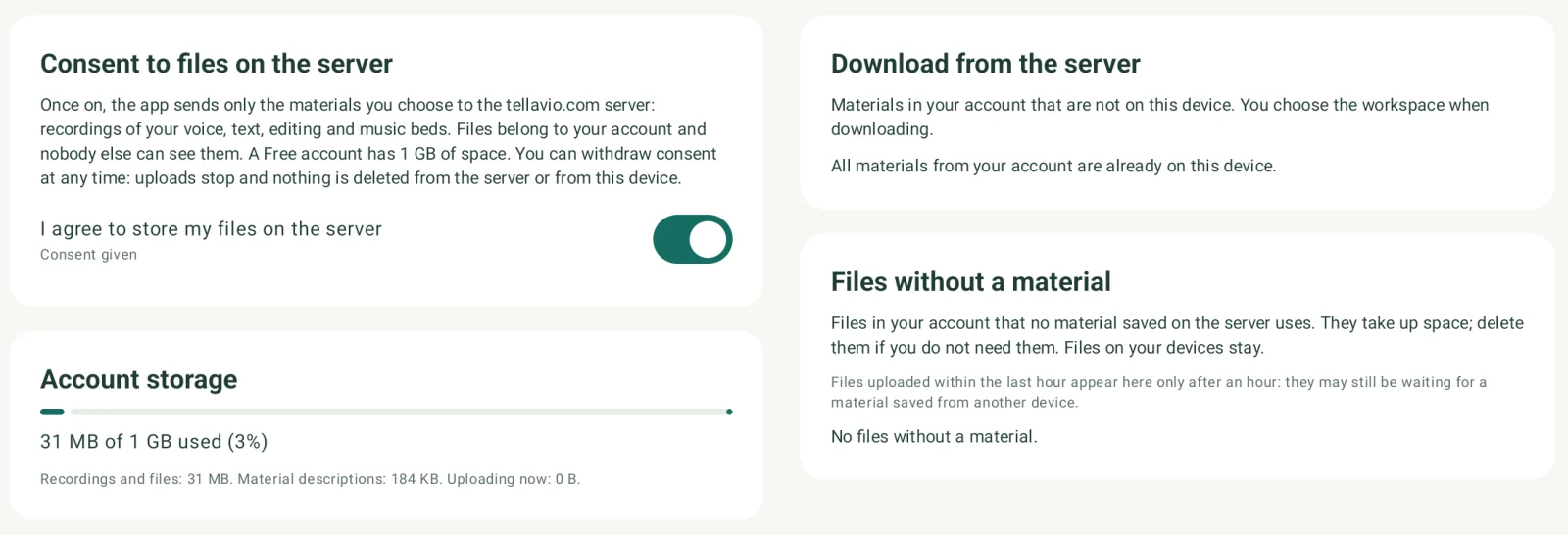
On the right are two lists. "Download from the server" shows projects in your account that are not on this device. When you download one, the app asks which workspace to save it in. "Files without a material" are recordings in your account that no project uses any more. You delete them yourself, after confirming.
2. Which projects to sync
Lower on the same screen is the list of projects on the device. Each has its own switch and a status in words: "Synced" with a date, "Uploading file 3 of 12", "Waiting for network", "Account out of space". The status is never shown by colour alone.
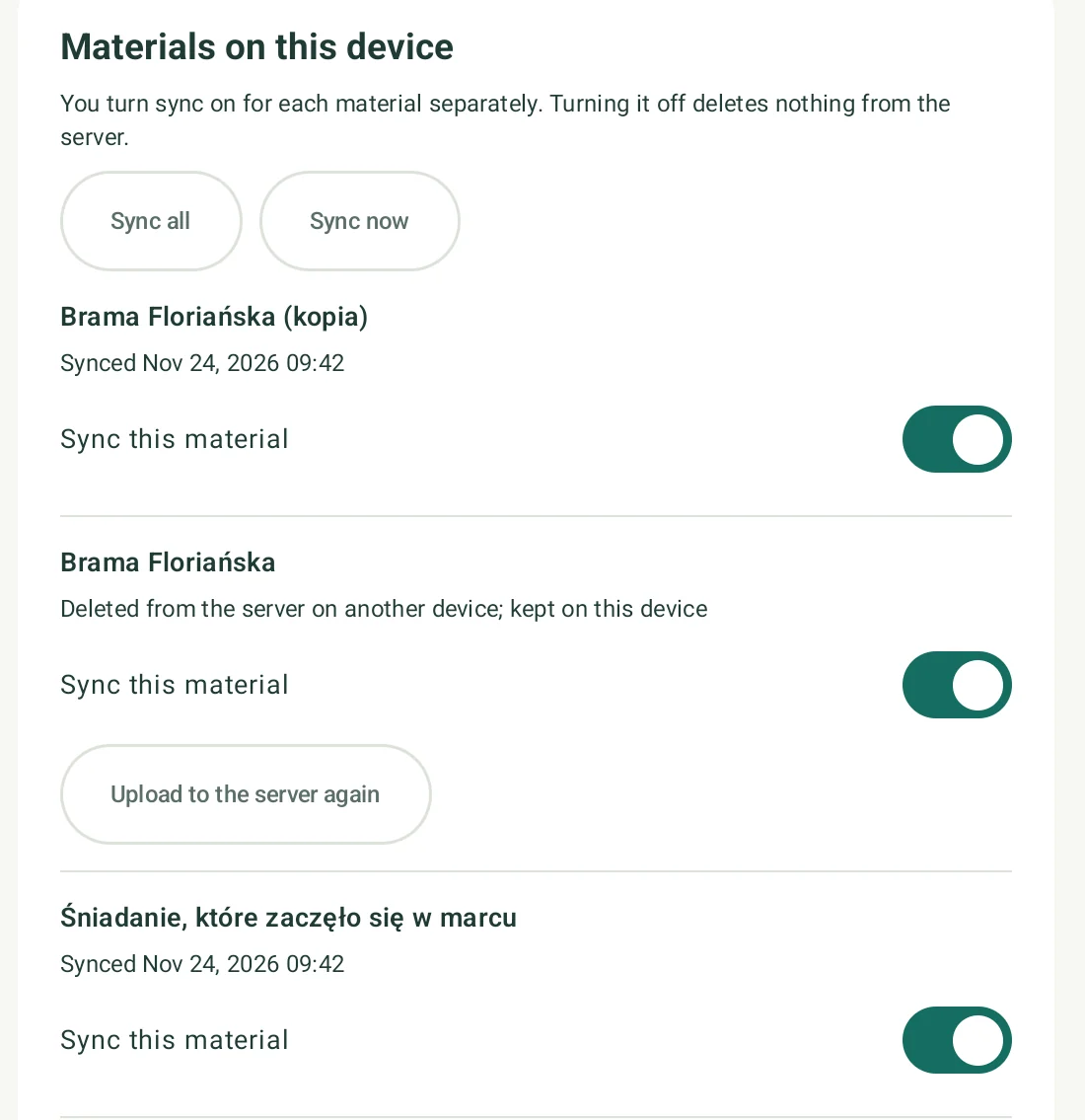
If you delete a project from the server on another device, it stays untouched here. The app tells you so and offers "Upload to the server again". Turning the switch off does not delete anything from the server either.
3. Downloading on a second device
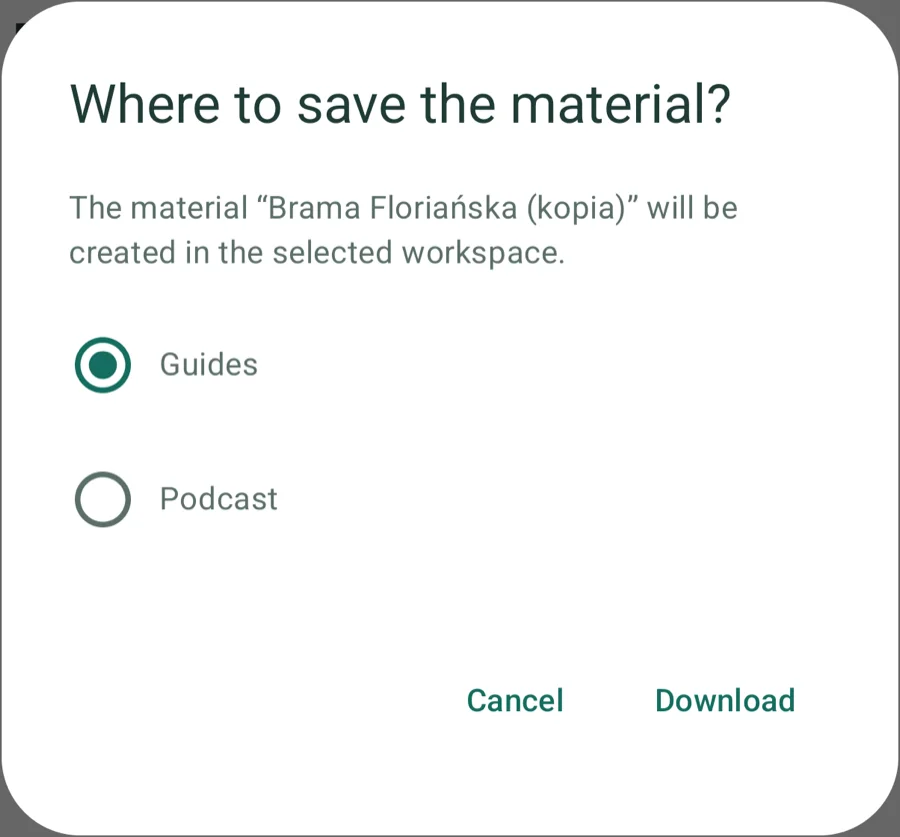
On the phone, the same screen lists the projects from the tablet under "Download from the server". When you tap "Download", the app asks which workspace to save the project in. The current one is selected by default, and "Cancel" downloads nothing.
The download runs in the background and resumes after a break, even if the app is closed. Every file is checked with its SHA-256 checksum before the project appears in the list. After that, the phone gets later changes from the tablet on its own.
4. The same switch inside a project
You do not have to go to settings. In the project view, next to "Project copy", there is a "Sync with your account" card with the same switch and the same status. A change in one place shows up in the other right away.

When the account or consent is missing, the card gives the reason instead of the switch, for example that sync needs consent to files on the server, and leads you to the Sync screen.
5. Conflict: choose a version
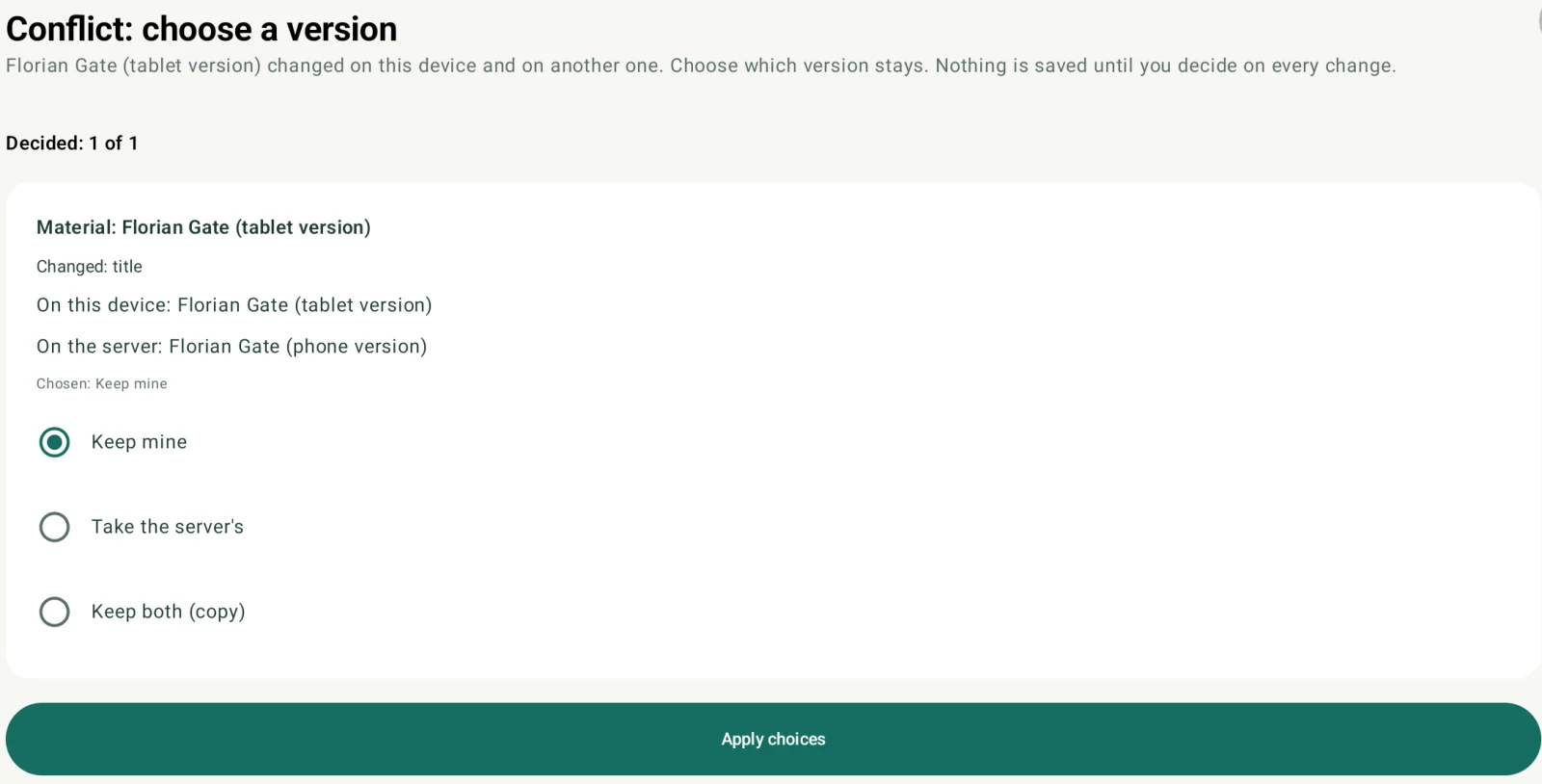
A conflict happens when the same thing changes on two devices before they sync. For example, you change the title on the tablet while offline, and change it differently on the phone. The app overwrites nothing. The project gets the status "Conflict: choose a version", and the conflict screen shows both versions in words.
There are three options: "Keep mine", "Take the server's" or "Keep both (copy)". The last one creates a separate project with this device's version. The "Apply choices" button stays inactive until you decide about every change. Nothing is saved before that.
What is next
Before sync reaches the downloadable version, we will start file storage on our own server and update the privacy policy. We will announce the release here and on the Download page.